

In computing, FTP (File Transfer Protocol) is used to transfer data from one computer to another over a network, such as the Internet. You can use ftp to send and receive files to and from Gmp Graphics. FTP uses the Internet to transfer files from your computer to your Gmp Graphics computer. You can send any type of images, such as PSD, TIFF, RAW, JPEG, etc. You should not use ZIP unless absolutely necessary. Gmp favors individual files in a specific folder. When you upload files to Gmp Graphics, create a folder and put all the files in the folder. As mentioned above, in the same way, files can be received from Gmp via FTP. After using FTP, you need to select the files and click Download. The files will start downloading from the Gmp computers to your computer.
Follow the detailed tutorial to access Gmp FTP. Gmp GRaphics. will provide three personalized information to access the FTP:
- Host name (Color Experts International, Inc. FTP’s computer name )
- User ID
- Password
In this tutorial, you will learn how to upload and download files through an FTP client called FileZilla. FileZilla is a free program, which means you can download and download this software for free. You can find this free software here:
Once you have downloaded and installed the program, you can launch the program and continue uploading and uploading the files to Gmp.
NOTE: You will need the FTP address of your site, as well as your login and password. As mentioned earlier, this personal information, such as your hostname, username, and password, should have already been emailed to you from the Gmp Graphics page. before you start working with FileZilla.
Step-1. After you launch FileZilla, you should get the following screen:
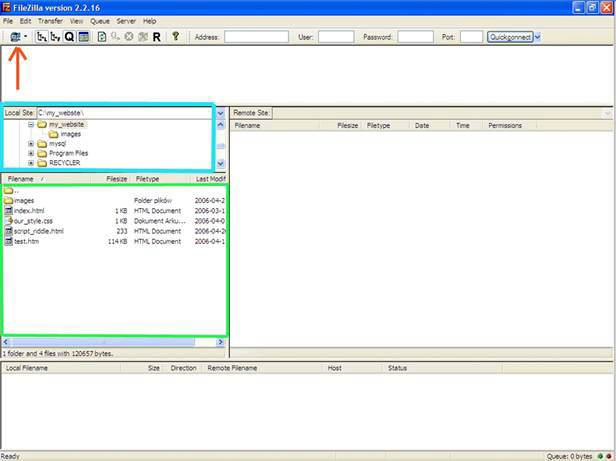
On the left you will see the local folder tree (light blue frame) and the contents of the selected folder (green frame). The display and program windows are customizable, so when you feel more comfortable, you can customize it to your liking. You can configure FileZilla to connect to your website by clicking on the small computer icon (red arrow) in the upper left corner.
Step-2. A Site Manager window will show up.
Click the New Site button (red arrow in the image below) and enter a name for the new connection settings. (It can be anything, it’s just that you know where to take you).

Step-3. Now you need to fill in the connection details (marked with red arrows in the bottom image).
- Please enter host name, this is your FTP address sent by Gmp. Your Server Type is Normal.
- Type the personalized Username and password provided by Gmp.
- If you’re not using your computer or you share your pc with other people and you don’t want them to be able to connect to your site, you can select the option not to remember your password (underlined with blue).
- Once you’re sure the settings are correct, click Save and Exit button.
Step-4. When you return to the main program window, click the small arrow (as in the image at the bottom) next to the computer icon in the upper left corner to see the drop-down menu. Select your website from the list you want to connect to
Step-5. Connection is established. You will see the folders of your site on the left side of the screen.
Step-6. Enter (double-click) your upload directory (To_Gmp Graphics).
Step-7. Now find image files you want to upload on your local machine (left-side folder tree and content). Simply select the files and drag-and-drop them to the right of the screen (In the To_Gmp Graphics folder).
You will notice the transfer progress on the bottom of the screen.
If all is OK, your FileZilla window will show the files you uploaded on the right.
Congratulations! You have just uploaded the files for processing by Gmp Graphics. Now please send an email to gmpgraphics.com to let us know that you have uploaded new files for processing.
After complete the files gmp graphics. will upload all files in the ftp. You will have to download the complete files in the same way.
Step-8. When you upload everything you need you can close the connection. To that click the icon pointed by red arrow.
You can safely close the program now by clicking the “x” in red button top left of the screen. If you’re having problems with uploading or downloading your files and you’re sure you followed the steps correctly please copy the error message you get and contact us at our Help Desk:gmpgraphics.com